
Presets, shortcuts and settings
Make GlintIt work the way you do: one keystroke for the captures you take all the time, your own shortcuts, and what happens after each capture.
Open Settings from the GlintIt menu.
Presets
A preset remembers a way of capturing and what to do afterwards, behind its own shortcut. GlintIt comes with three:
| Preset | Shortcut | Does |
|---|---|---|
| Window for docs | ⌃⇧1 | Area or window, with a shadow, copied; the editor doesn't open |
| Full page | ⌃⇧2 | Scrolling capture, opened in the editor |
| Menu (5 s delay) | ⌃⇧3 | Waits 5 seconds so you can open a menu, then captures |
To make your own:
- In Settings → Presets, click Add Preset….
- Give it a name, and choose what to Capture and any Delay.
- Under Afterwards, choose what happens: open it in the editor, copy it, add a border or a drop shadow, Hide private details (Smart Redact), or Also save a copy to a folder (PNG or JPEG).
- Pick a Shortcut from ⌃⇧1 to ⌃⇧9, and click Save.
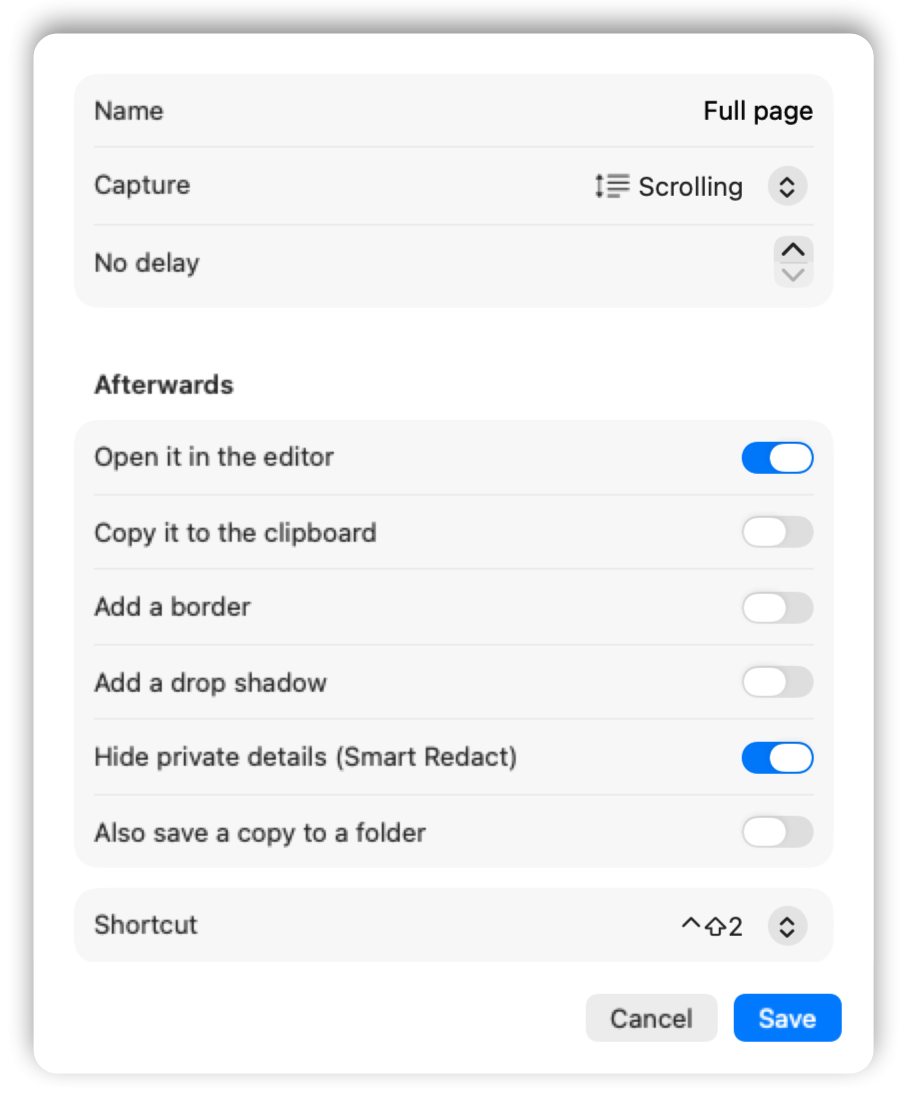
Run a preset with its shortcut, or from Presets in the GlintIt menu. Captures made with a preset are tagged with its name in the library.
Change a shortcut
- In Settings → Shortcuts, click the shortcut you want to change.
- Press the new keys. Use at least one of ⌘, ⌃ or ⌥ (function keys such as F5 can be used on their own).
- Esc cancels.
- Delete turns the shortcut off.
- The arrow button puts the default back.
GlintIt won't take a combination that another GlintIt shortcut or a preset (⌃⇧1–⌃⇧9) already uses, and tells you which one has it. If another app already uses a combination, GlintIt shows a warning next to it.
In the preset editor, shortcuts already taken by another preset are marked (in use); choose a free one.
Settings
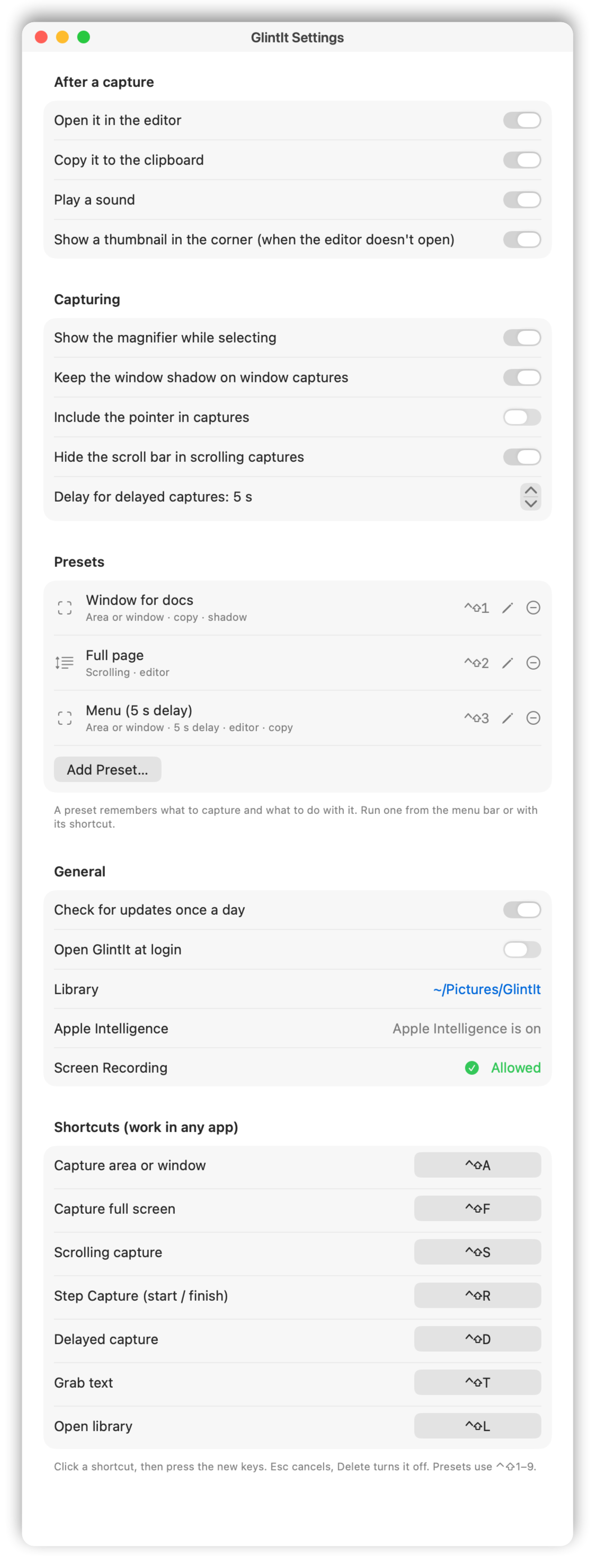
After a capture: open it in the editor, copy it to the clipboard, play a sound, and show a thumbnail in the corner when the editor doesn't open.
Capturing: the magnifier while selecting, window shadows, including the pointer, hiding the scroll bar in scrolling captures, and the length of delayed captures.
General: check for updates once a day, open GlintIt at login, where the library is, and whether Apple Intelligence and Screen Recording are available.
Next: Keyboard shortcuts