

GlintIt
Screenshot & annotation app for Mac
Screenshots that explain themselves.
A fast screenshot and annotation app for Mac, and a buy-once Snagit alternative: capture anything, mark it up, take scrolling screenshots, hide private details automatically, and turn captures into clean step-by-step guides.
macOS 14 or later · Apple Silicon & Intel · 15-day free trial · buy once
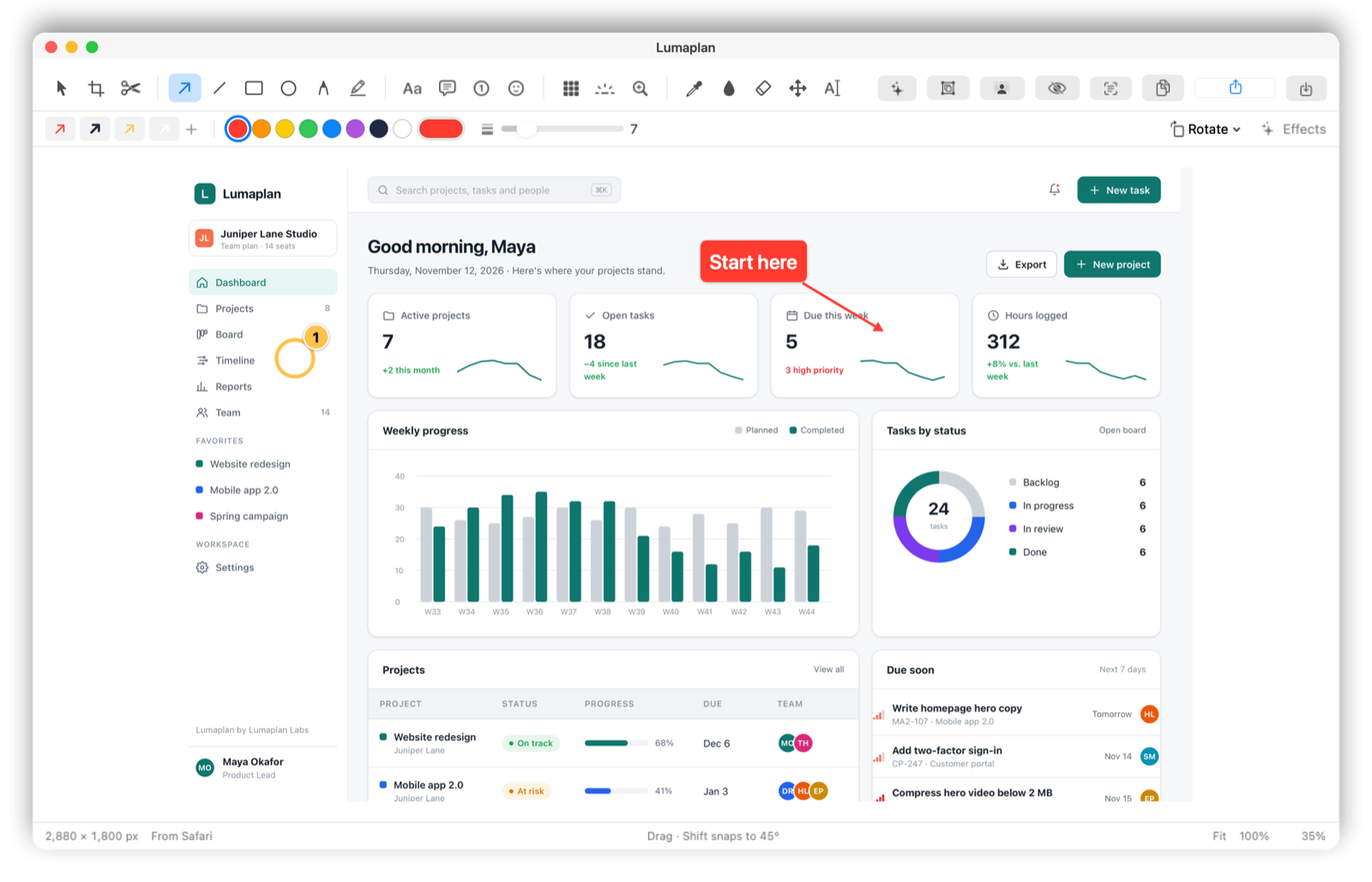
More than a screenshot tool
The parts of the job that usually take the longest, done for you.
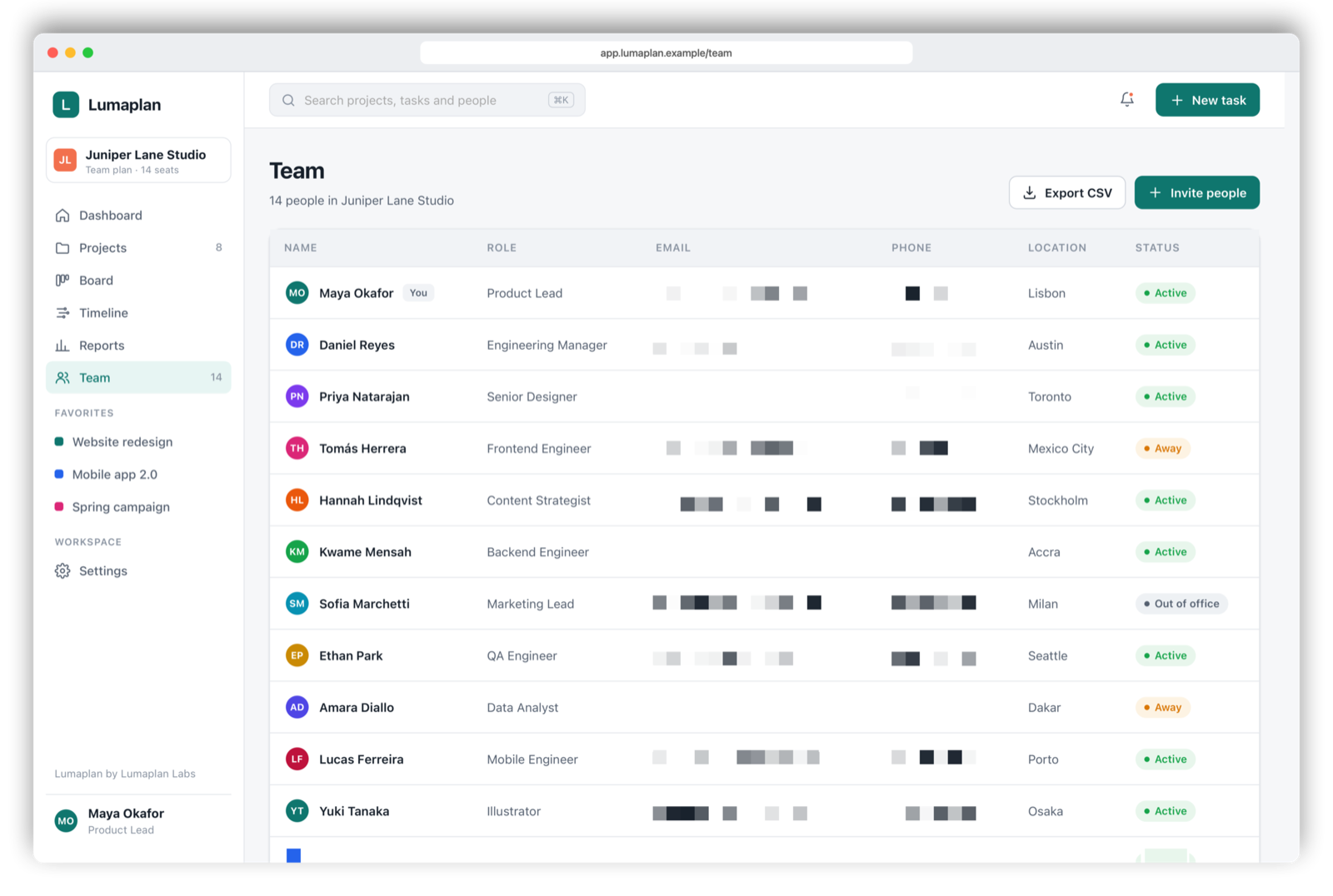
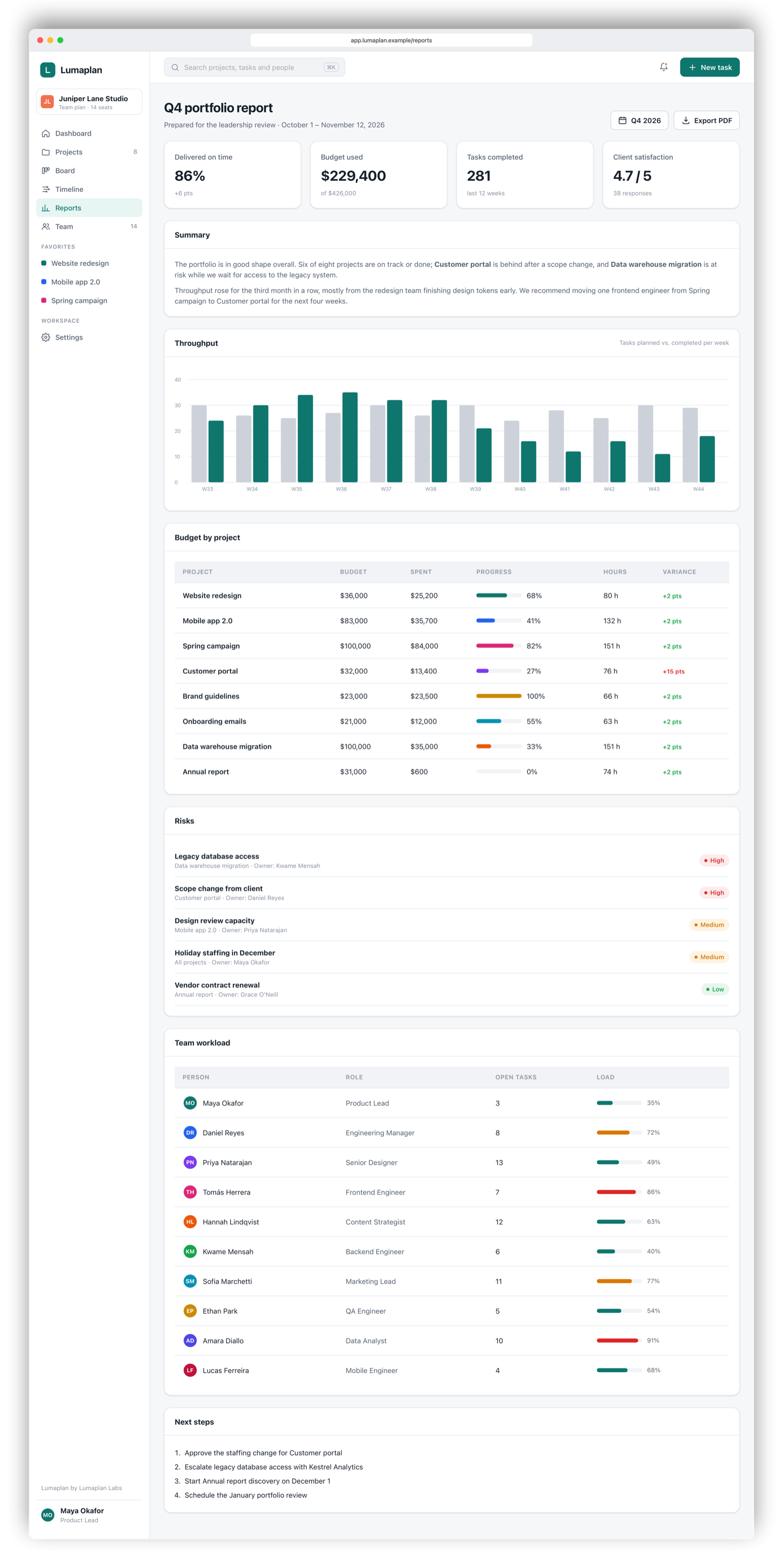
Private details, found and hidden for you
GlintIt reads the picture and finds email addresses, phone and card numbers, API keys and passwords. Check the list, click once, and every one is blurred or blacked out before you share.
- Finds text even at the edges of the picture
- Blur or black box
- Undo any of it with ⌘Z
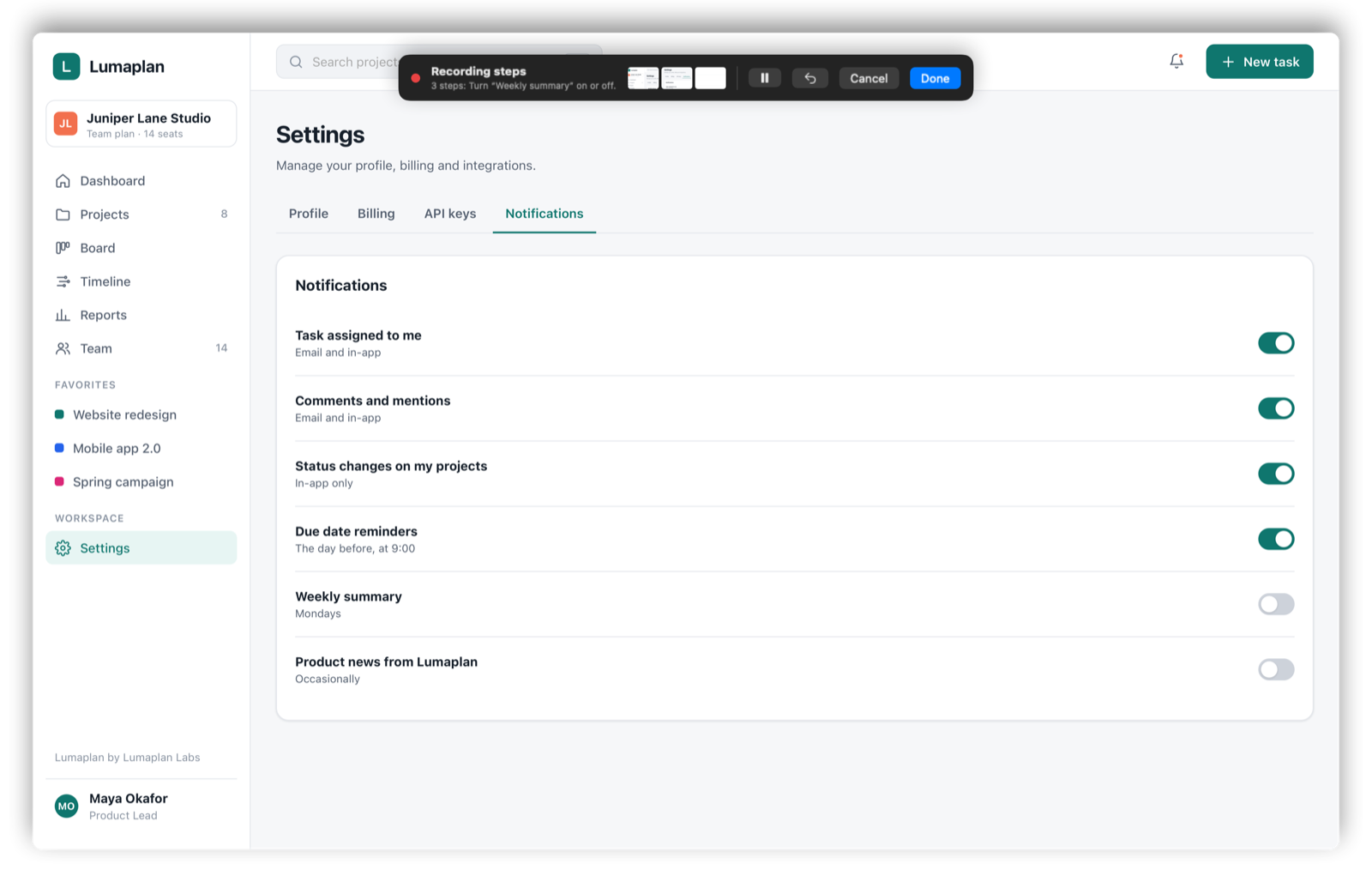
Do the task once. Get the how-to guide.
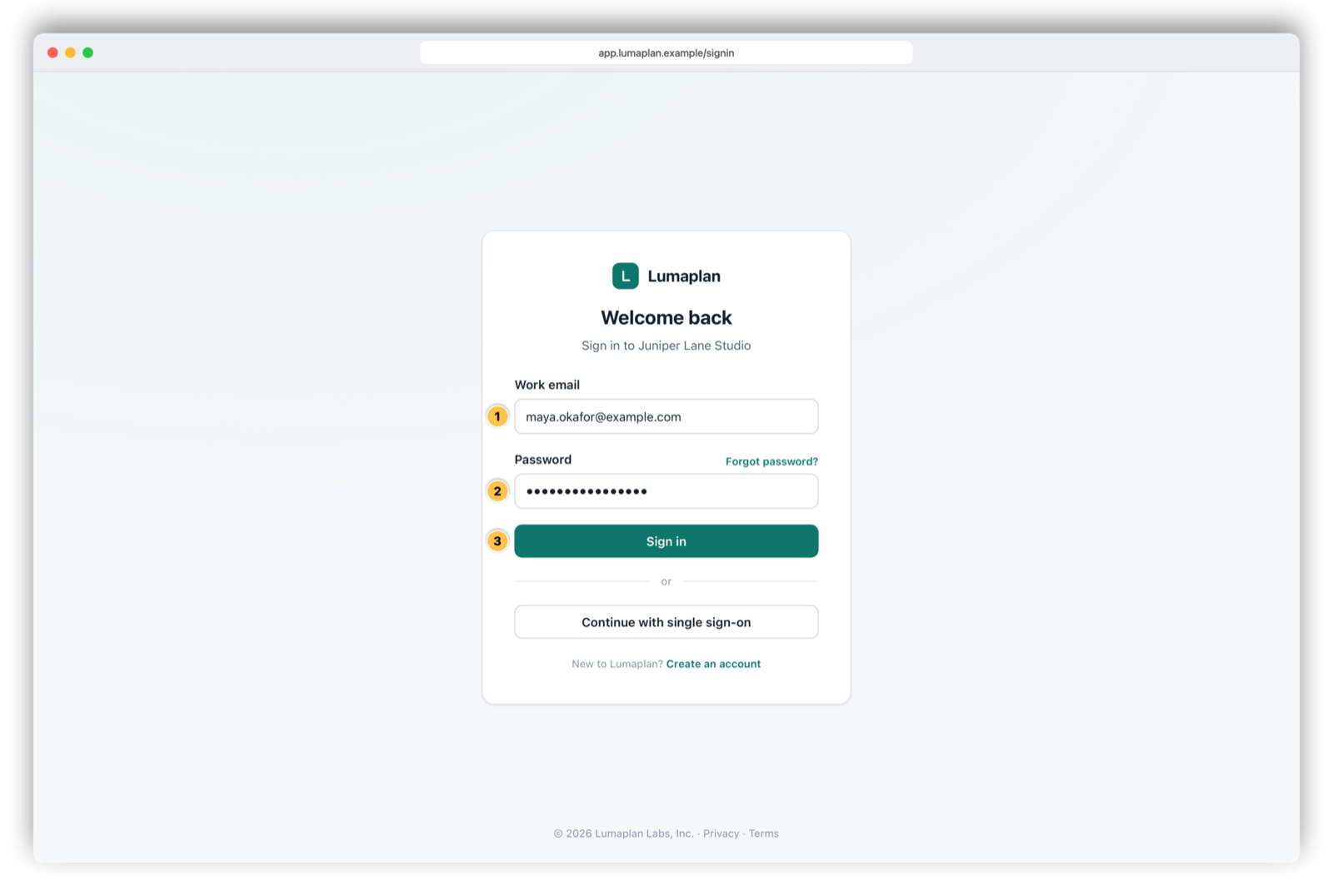
Press ⌃⇧R and work as usual. Every click becomes a numbered step with a picture and an instruction, ready to edit and send.
- Pause, undo the last step, or cancel
- Instructions written from what you clicked
- Edit any step afterwards
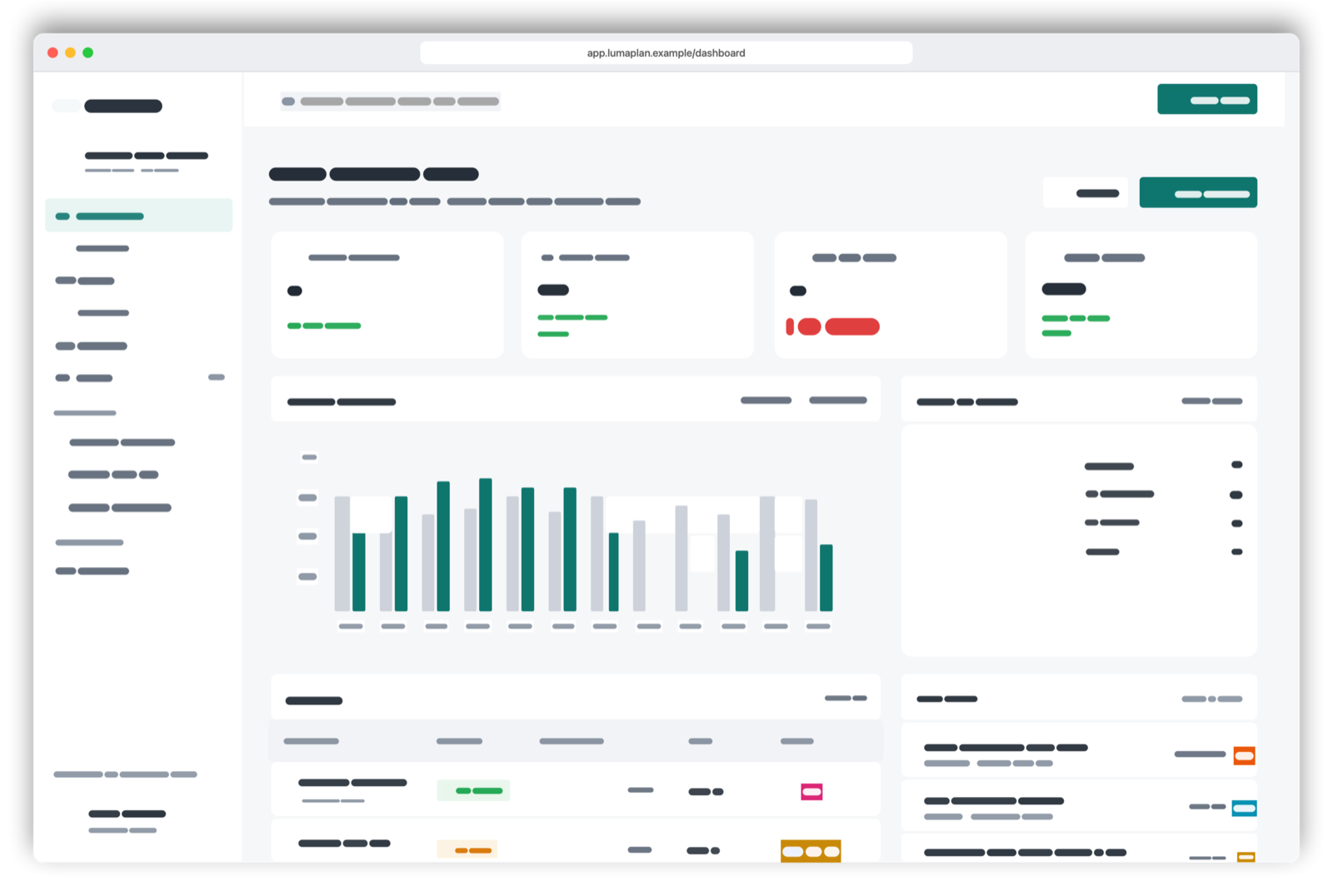
Documentation that doesn’t go out of date
Simplify redraws a busy screenshot as clean, flat shapes, so the next interface change doesn’t break your docs. Every shape stays editable.
- Whole picture, or just turn words into bars
- Keeps each element’s color
- Recolor or delete any shape
The whole page, not just what fits on screen
Capture long web pages, documents and chats in one picture, scrolling down or sideways. Bars stuck to the bottom and the scroll bar are cleaned up for you.
- Scroll yourself, or let GlintIt auto-scroll
- Auto-scroll finishes at the end of the page
- Up to 40,000 pixels long
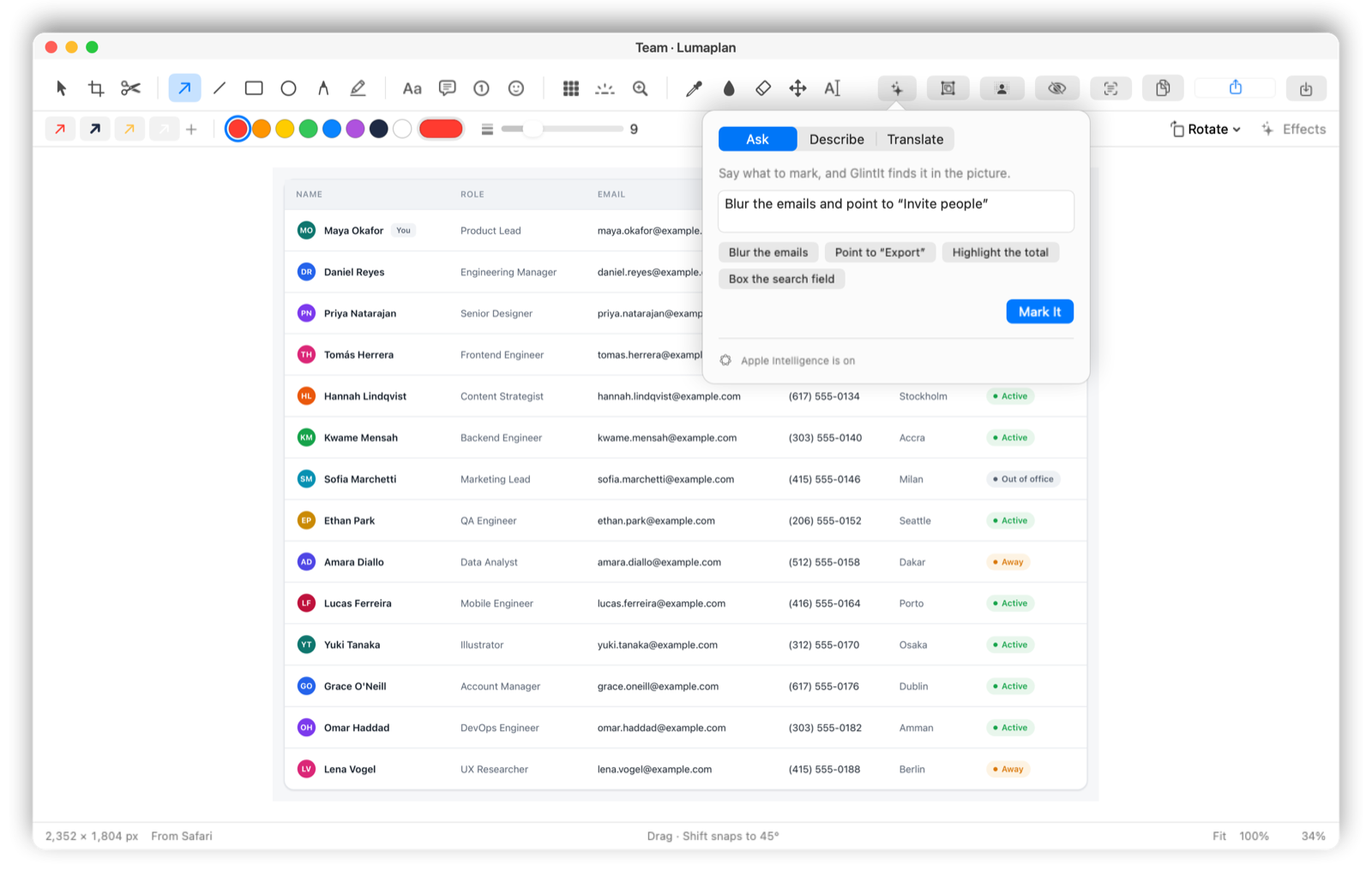
Say what to mark. GlintIt finds it.
Type “Blur the emails and point to Invite people” and the marks appear. Describe writes alt text for you, and Translate replaces the words in a screenshot with another language.
- Runs on your Mac, nothing is uploaded
- Uses Apple Intelligence when your Mac has it
- Works on other Macs too
And everything else you expect
From the first click to a polished picture, in one small app.
Capture anything
An area, a window or the full screen, on a frozen screen with a pixel magnifier. Delayed capture for menus.
Markup that looks good
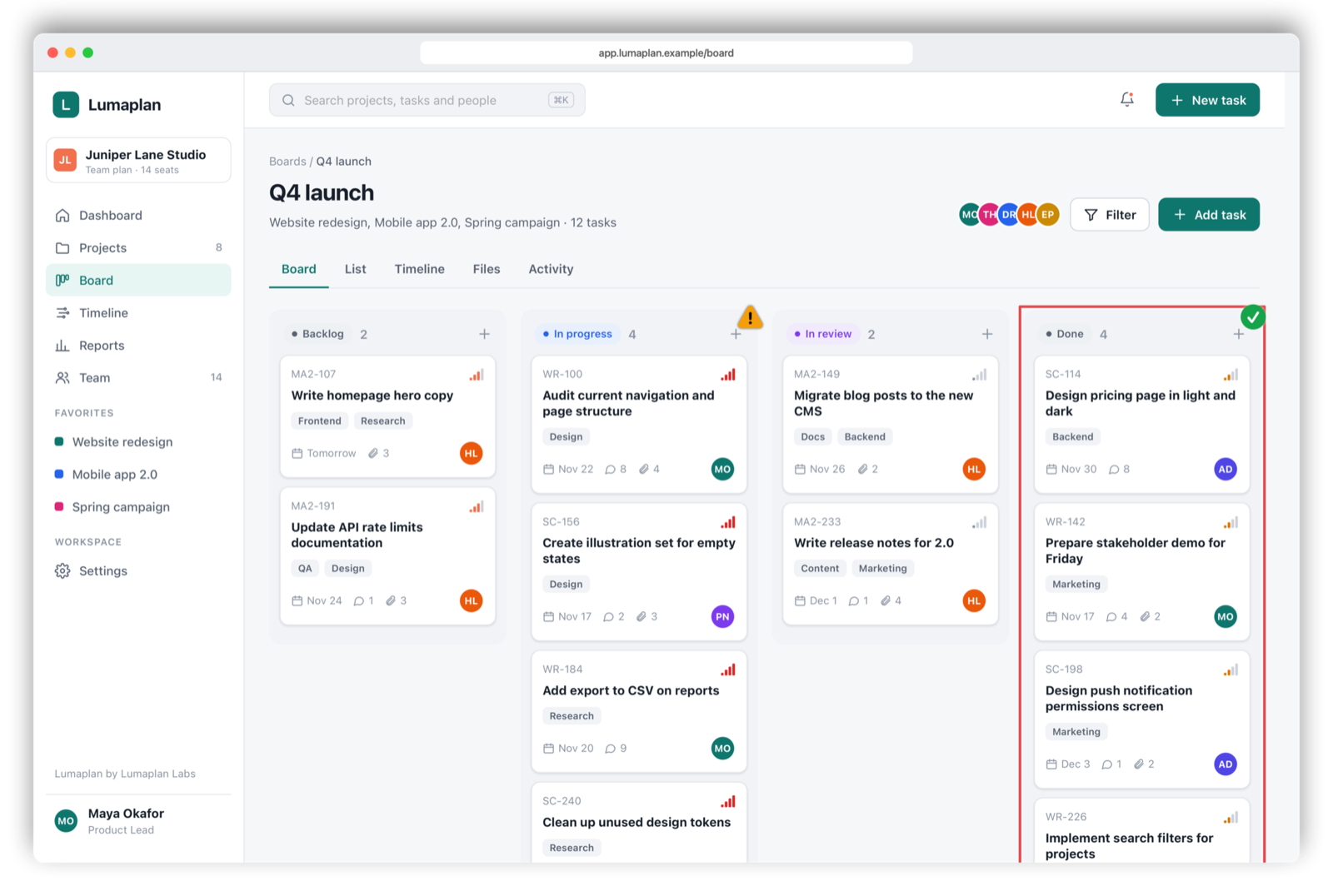
Arrows, callouts, numbered steps, stamps, spotlight, magnify and blur, with quick styles you save once.
Fix the picture itself
Cut out a strip, move pixels, retype text in the screenshot, or remove the background.
Templates
Combine captures into step guides, before-and-after comparisons and grids. Every title stays editable.
A library that finds things
Every capture saved and editable, and searchable by the text inside the pictures.
Built for speed
Shortcuts that work in any app, presets for repeat jobs, and a thumbnail you can drag anywhere.
Pictures that explain themselves
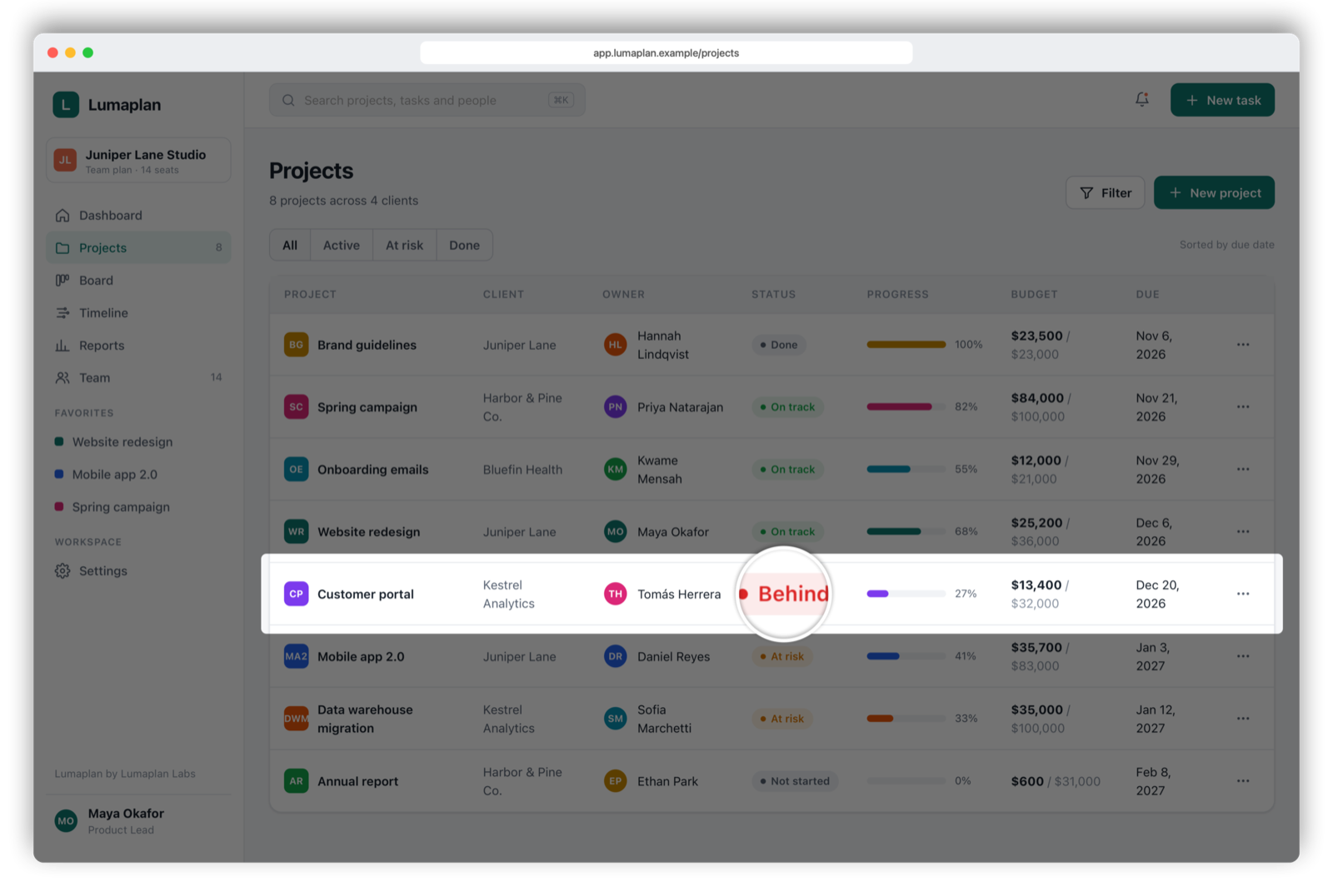
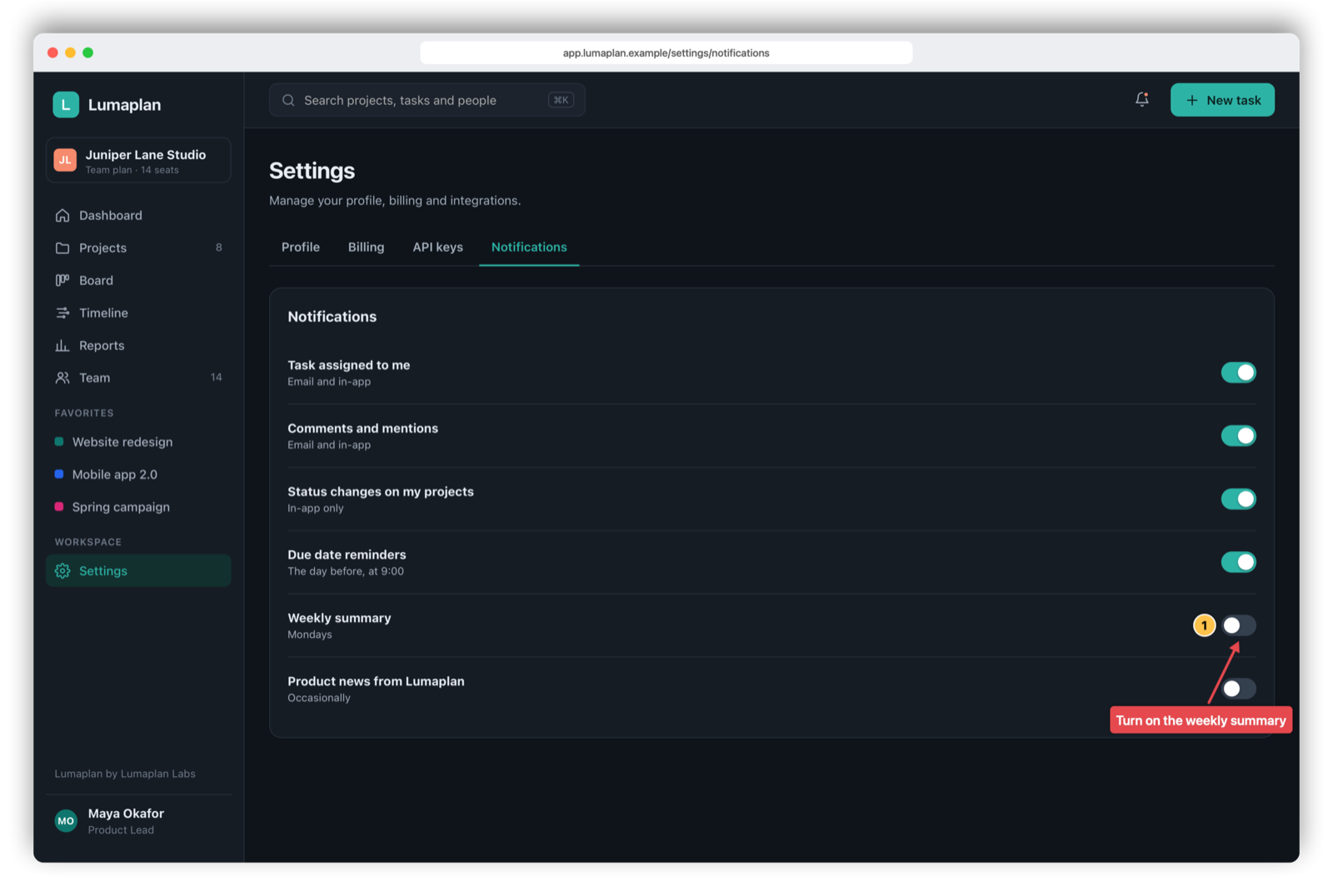
Learn it in minutes
14 short, task-based guides, each with pictures of exactly what you’ll see. No videos to scrub through, no manual to read cover to cover.
Your screenshots stay on your Mac
No account, no cloud upload, no tracking. Text recognition, Smart Redact, background removal and the AI features all run on your Mac.
Buy once, keep it forever
Every license includes 12 months of new versions. After that it keeps working; upgrade only when you want what’s new.
After your 12 months of new versions, GlintIt keeps working. Want another year of updates? Upgrades will cost $15.
Prices in USD. Sold by Parallax Motion LLC. Secure checkout by Stripe.
Questions
Is GlintIt a good Snagit alternative for Mac?
GlintIt covers what most people use Snagit for: capture, arrows and callouts, numbered steps, blur, scrolling capture, templates and a searchable library. It’s a native Mac app, and you buy it once instead of paying a subscription.
How do I take a scrolling screenshot on a Mac?
macOS can’t capture a whole scrolling page on its own. In GlintIt, choose Scrolling Capture, select the area, and scroll yourself or let GlintIt auto-scroll to the end. It stitches one tall picture, up to 40,000 pixels long.
How do I blur or redact private information in a screenshot?
Smart Redact finds email addresses, phone and card numbers, API keys and passwords in the picture. Check the list, click once, and each one is blurred or covered with a black box. You can also blur any area by hand.
Can GlintIt make step-by-step guides?
Yes. Step Capture records each click as a numbered step with a picture and an instruction, ready to edit and share as a how-to guide or SOP.
How does the trial work?
Every feature is on for 15 days, no sign-up. After that GlintIt keeps working, but pictures you copy or export get a small "trial" mark until you add a license.
Is it a subscription?
No. You buy a license once and keep it forever. It includes every new version released in the next 12 months. After that, keep using your version, or upgrade for another year of new versions.
Does GlintIt upload my screenshots?
No. Captures stay on your Mac, in your Pictures folder. Text recognition, Smart Redact and the AI features run on your Mac too. About once a week GlintIt checks that your license is still valid, sending only the license number; a license is cancelled only if its purchase is refunded.
Do I need Apple Intelligence?
No. With Apple Intelligence (Apple silicon, macOS 26 or later) Ask understands free-form requests and Describe writes natural sentences. On other Macs both still work with the common requests, and Translate works on any Mac with macOS 15 or later.
Which Macs does it run on?
macOS 14 Sonoma or later, on Apple Silicon and Intel Macs.
I lost my license key.
It’s in the email we sent after your purchase. If you can’t find it, contact us with your purchase email and we’ll resend it.
Already a customer? Open GlintIt, choose License… from its menu bar icon, and paste your key.
Something not working, or an idea for GlintIt? Contact support