
Ask, Describe and Translate
Click Ask GlintIt (the sparkles) in the editor's toolbar to mark up a picture by asking, describe it for accessibility, or translate its labels. Everything runs on your Mac.
Ask
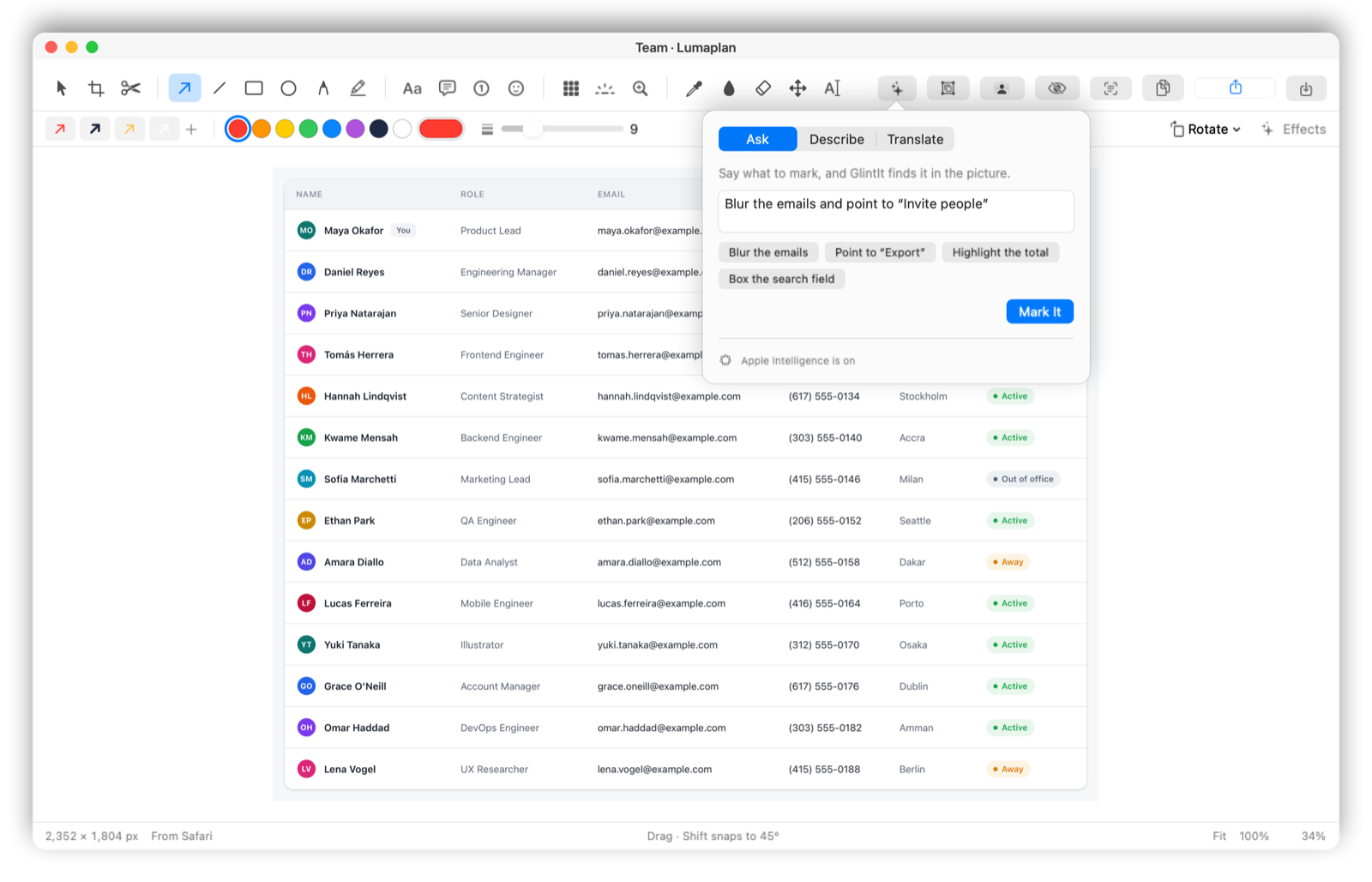
Say what to mark, and GlintIt finds it in the picture.
- Click Ask GlintIt, then Ask.
- Type a request, or click an example to start one: You can combine requests: "Blur the emails, then point to “Export”".
- "Blur the emails"
- "Point to “Export”"
- "Highlight the total"
- "Box the search field"
- Click Mark It.
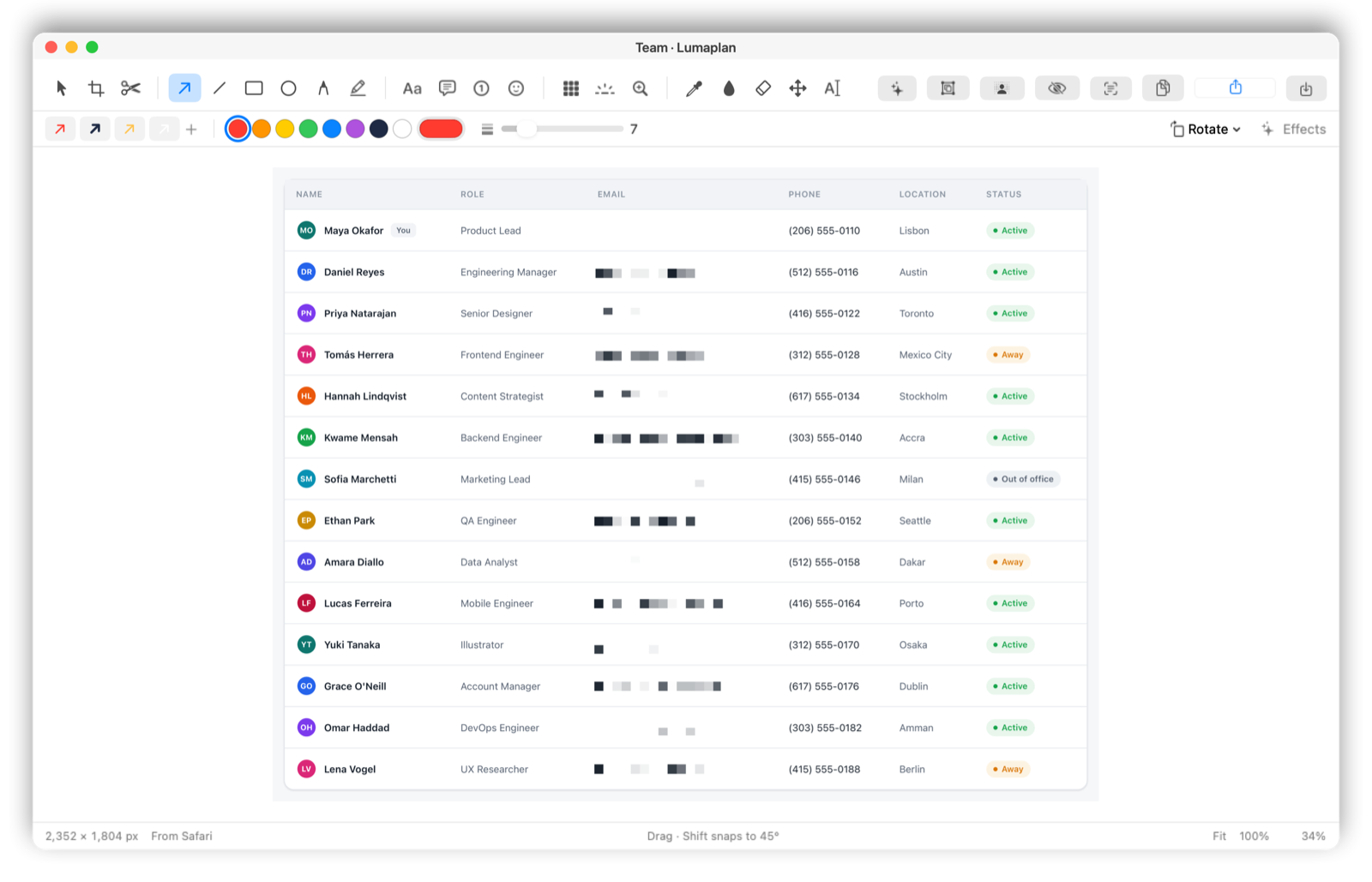
The marks are ordinary marks, added as one step: ⌘Z removes them all.
Tips: put the words exactly as they appear in the picture in quotes for the best match. If nothing matches, GlintIt adds nothing rather than guessing.
Describe
Writes a short description of the picture (alt text) for screen readers, documentation and search.
- Click Ask GlintIt, then Describe.
- Click Describe. Click Copy to paste it into your document.
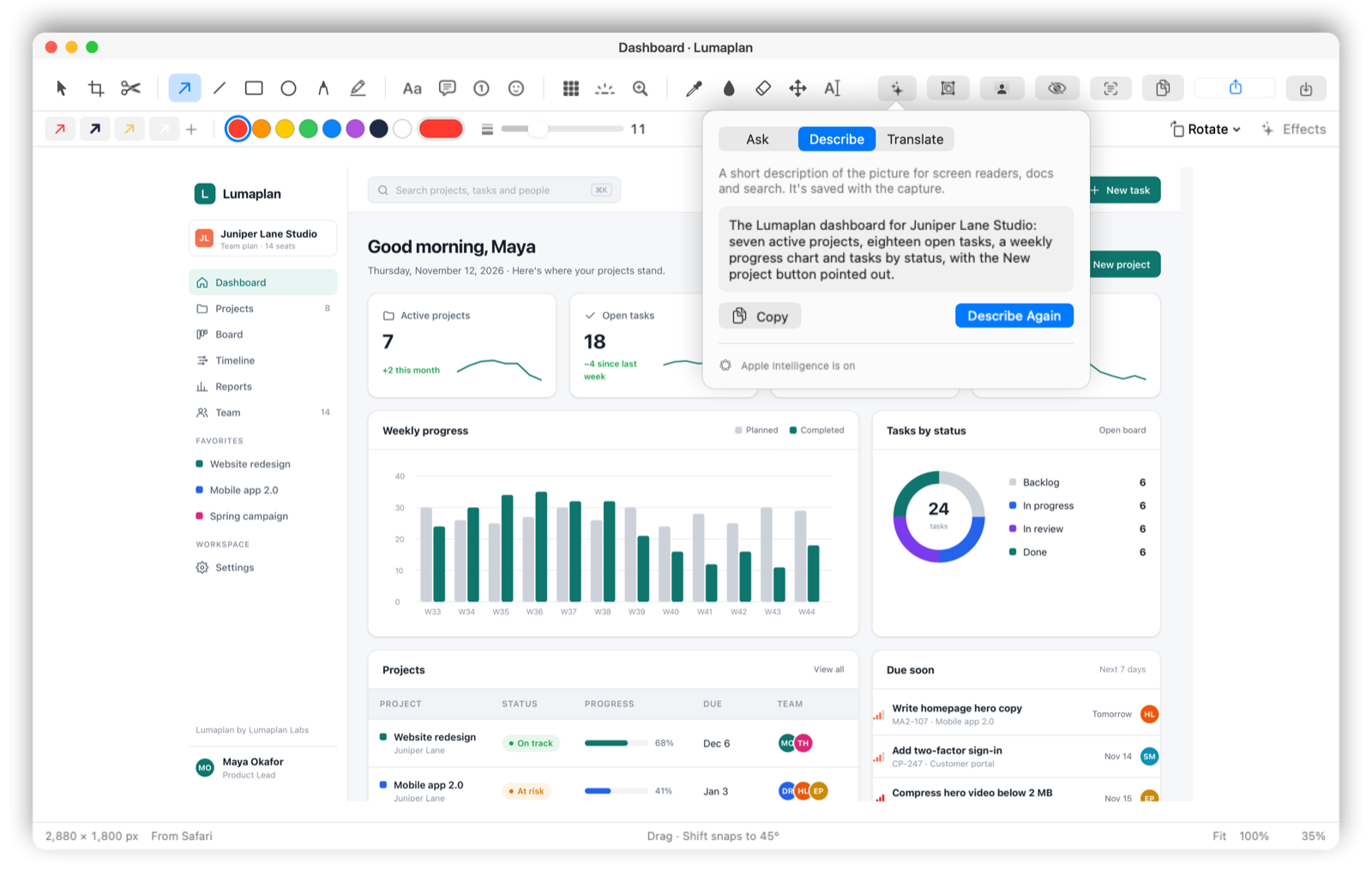
The description is saved with the capture, and the library's search finds captures by it. Email addresses, phone numbers and keys are always left out.
Translate
Translates the text you added: labels, captions, titles, and text you retyped with Edit Text in Picture. Useful for a guide you made with Step Capture. The rest of the screenshot isn't changed.
- Click Ask GlintIt, then Translate.
- Choose a language and click Translate (the button says how many labels, for example Translate 3 Labels).
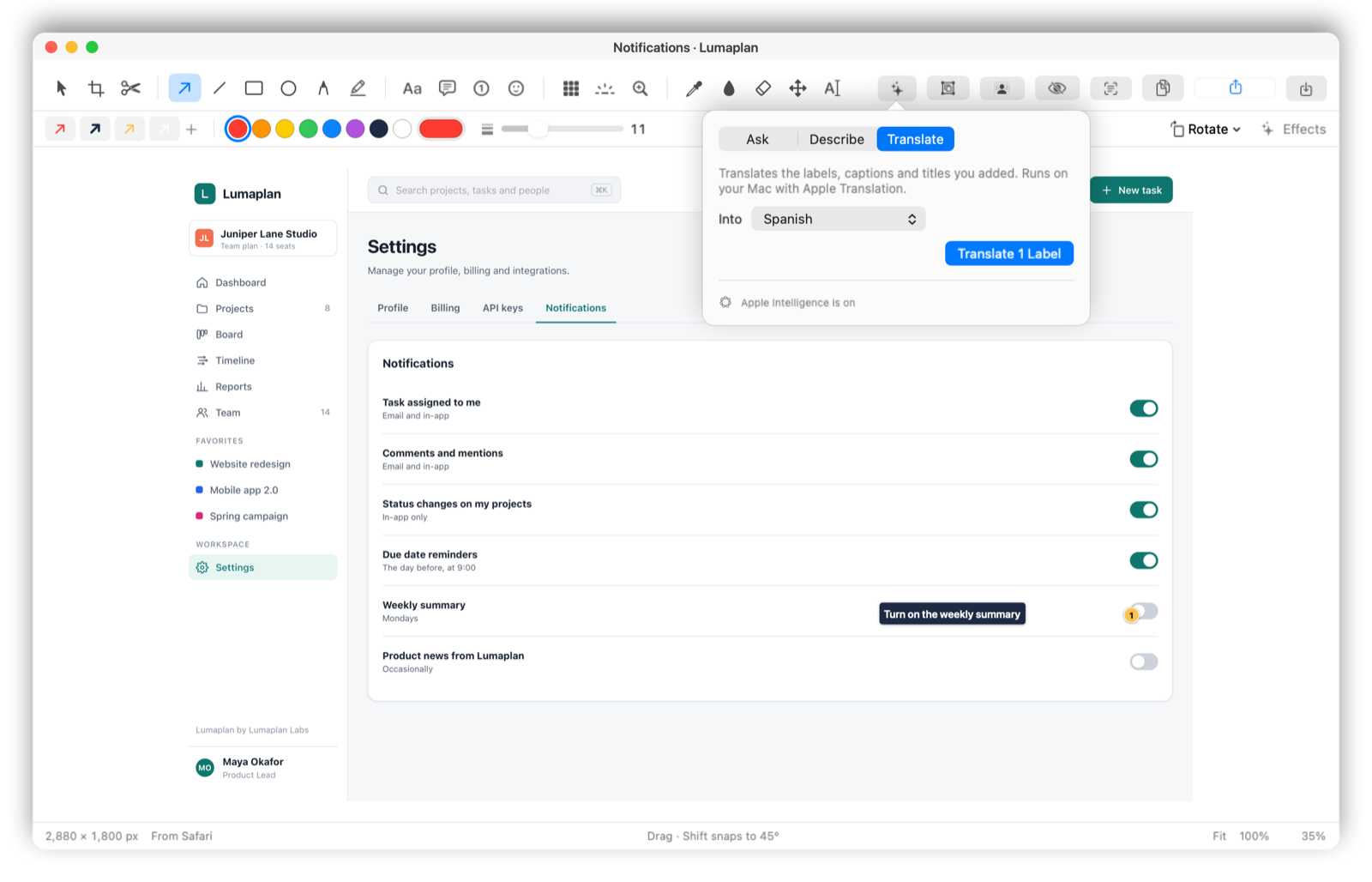
The first time you use a language, macOS offers to download it. After that, translation works offline. ⌘Z brings the original words back.
With and without Apple Intelligence
On a Mac with Apple silicon running macOS 26 or later, with Apple Intelligence turned on, Ask understands free-form requests and Describe writes natural sentences. On other Macs, both still work: Ask understands the common requests above, and Describe builds the description from the app, the window and the text in the picture. The panel tells you which is in use.
Translate uses Apple Translation, which works on any Mac with macOS 15 or later.