
Hide private details
Smart Redact finds email addresses, phone numbers, card numbers, keys and passwords in a capture and hides them in one click, before you share it.
Hide them in the editor
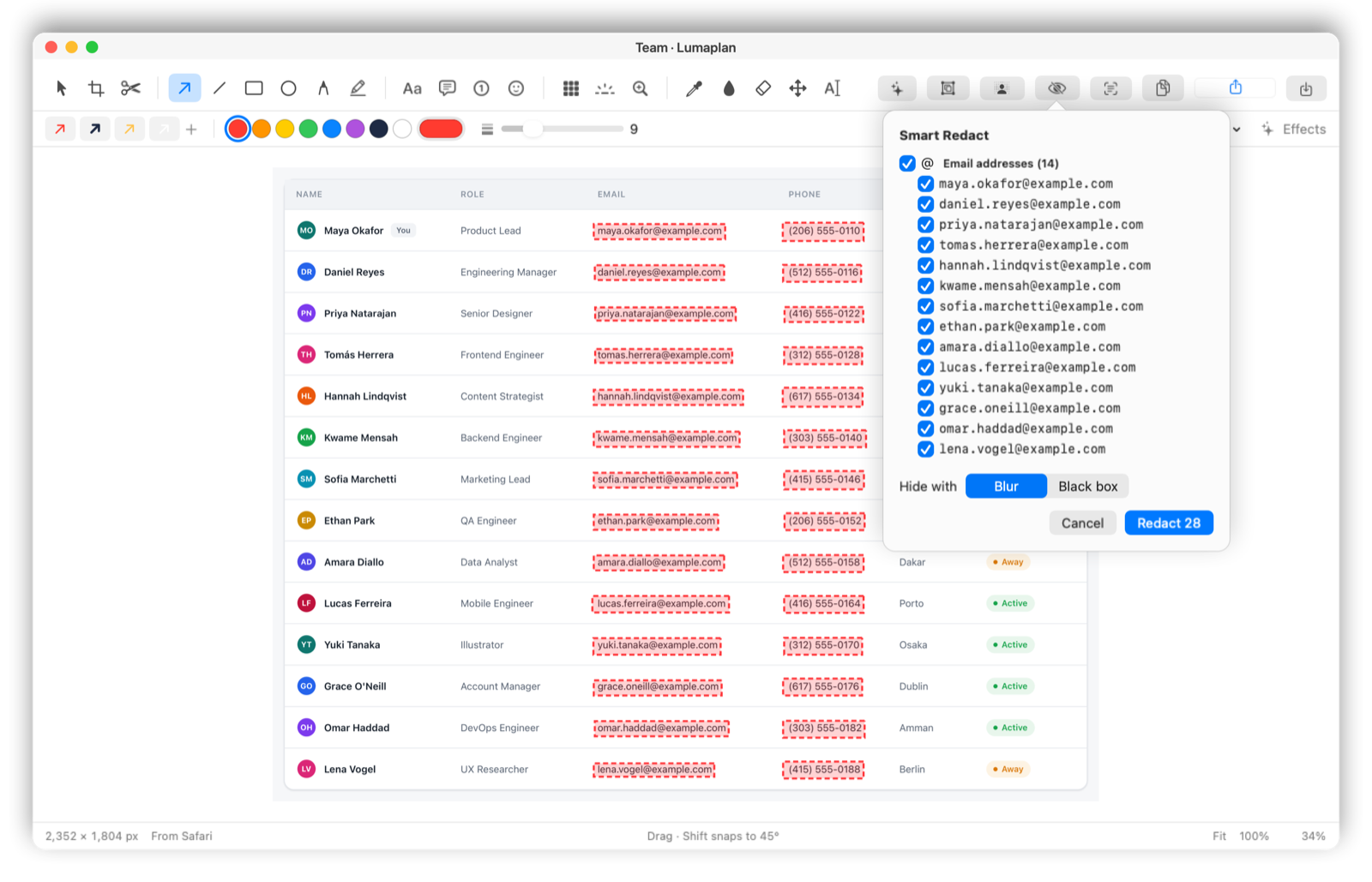
- Click Smart Redact (the eye with a slash) in the toolbar.
- GlintIt reads the picture and outlines everything it found in red. The panel lists the findings by type.
- Untick anything you want to keep visible.
- Choose Blur or Black box.
- Click Redact (it shows how many, for example Redact 28).
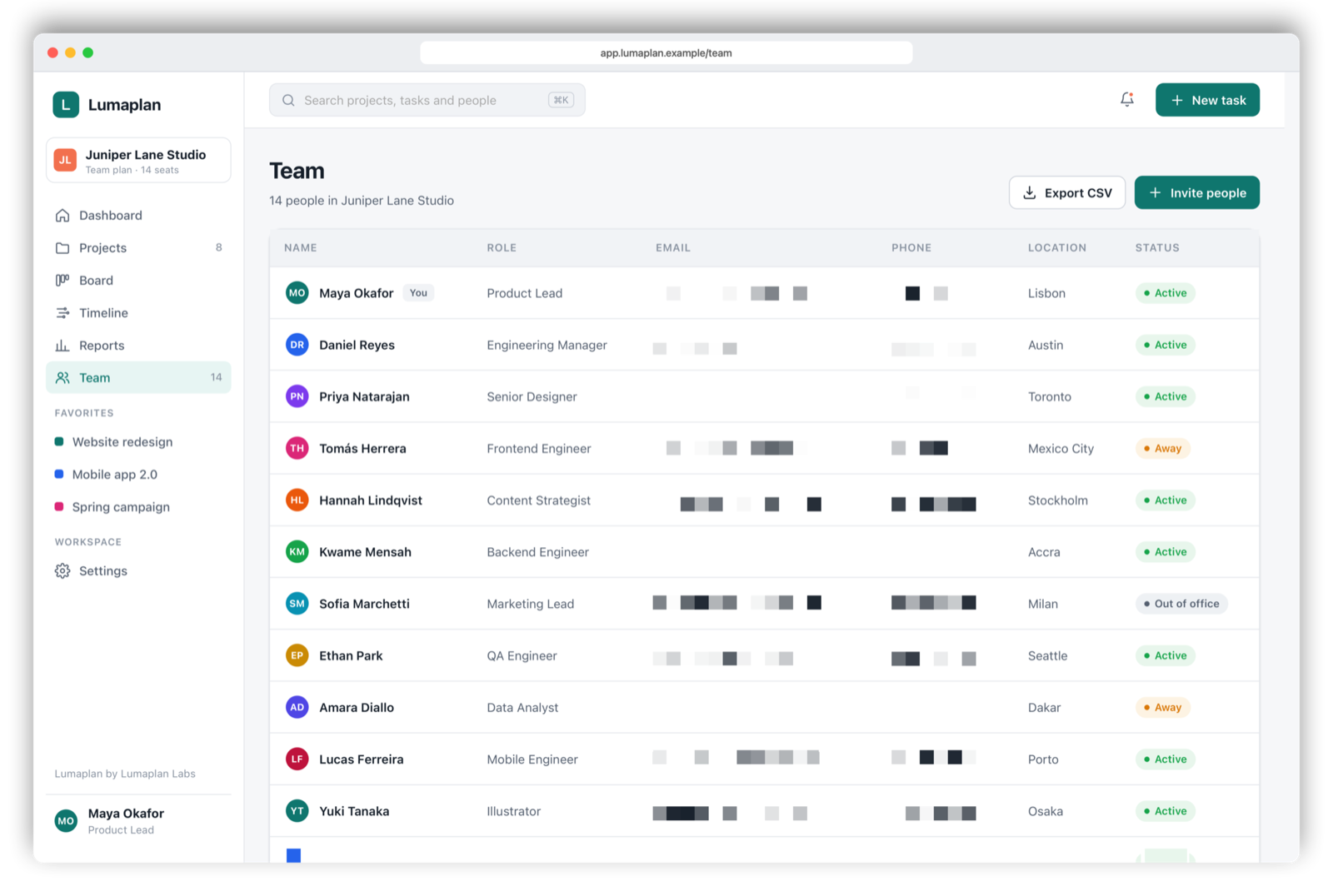
It's one step to undo (⌘Z), and each blur is a normal mark you can move or delete.
What it finds
| Kind | Example | Starts ticked |
|---|---|---|
| Email addresses | maya@example.com | Yes |
| Phone numbers | (206) 555-0110 | Yes |
| Card numbers | 4242 4242 4242 4242 | Yes (only real card numbers, checked with the card checksum) |
| Social Security numbers | 123-45-6789 | Yes |
| IP addresses | 192.168.10.24 | Yes |
| API keys and tokens | sk_live_…, ghp_…, AKIA… | Yes |
| Passwords | password: … | Yes |
| Street addresses | 1200 Example Avenue | Yes |
| Text cut off at the edges | a row cut in half by the capture | Yes |
| Links | https://… | No (usually fine to share) |
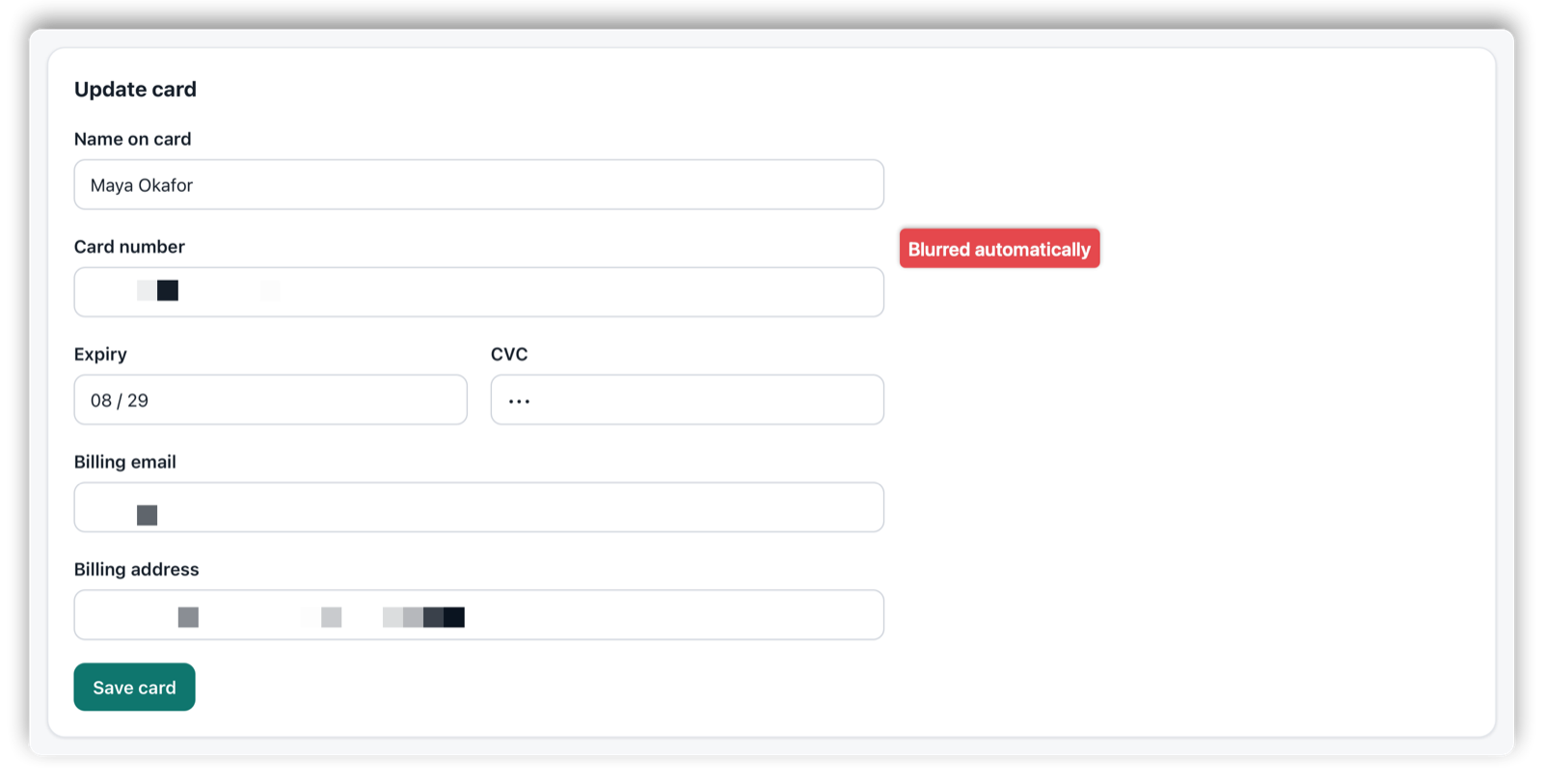
Text cut off at the edges: if your capture cuts through a line, the half-visible text can't be read reliably, but people can often still make it out. GlintIt hides it to be safe, which may include harmless words in that line. Untick it if you need them.
Hide them automatically, every time
Make a preset that redacts before anything is copied or saved:
- Open Settings → Presets → Add Preset….
- Turn on Hide private details (Smart Redact).
- Give it a shortcut, such as ⌃⇧4.
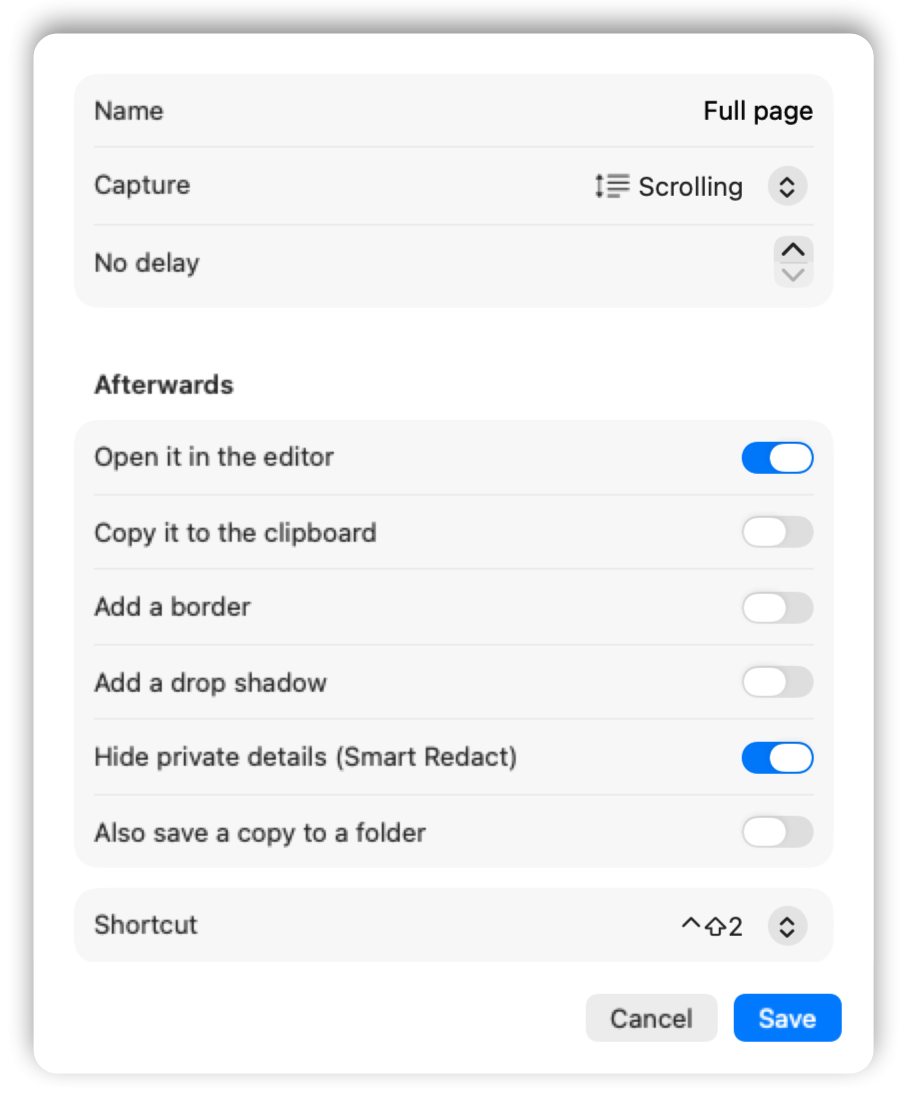
Captures made with that preset are redacted before they reach your clipboard.
Hide something by hand
Press B (Blur) and drag over anything Smart Redact can't know is private: a name, a face, an account balance.
Good to know
- Your picture never leaves your Mac. Reading the text and finding private details all happen on your Mac.
- The original stays in your library. Edits sit on top of it, so you can always undo. Everything you copy, export, share or drag out is redacted.
- The library's search never stores private details: they're saved as
•••. - Always look before you share. Smart Redact catches the common patterns, not everything a person would consider private.
Next: Copy, share, export and print · Presets, shortcuts and settings